
A site is a separate address or location where work is carried out. An organization can have several sites, such as shops, offices, warehouses, or other premises. You can also create a site without a client, for example for your company’s own premises.
The sites list
Open Addresses in the main menu and select Sites at the top of the page. This page contains the sites table, filters on the left, column settings, saved views, and the Table / Map switch.
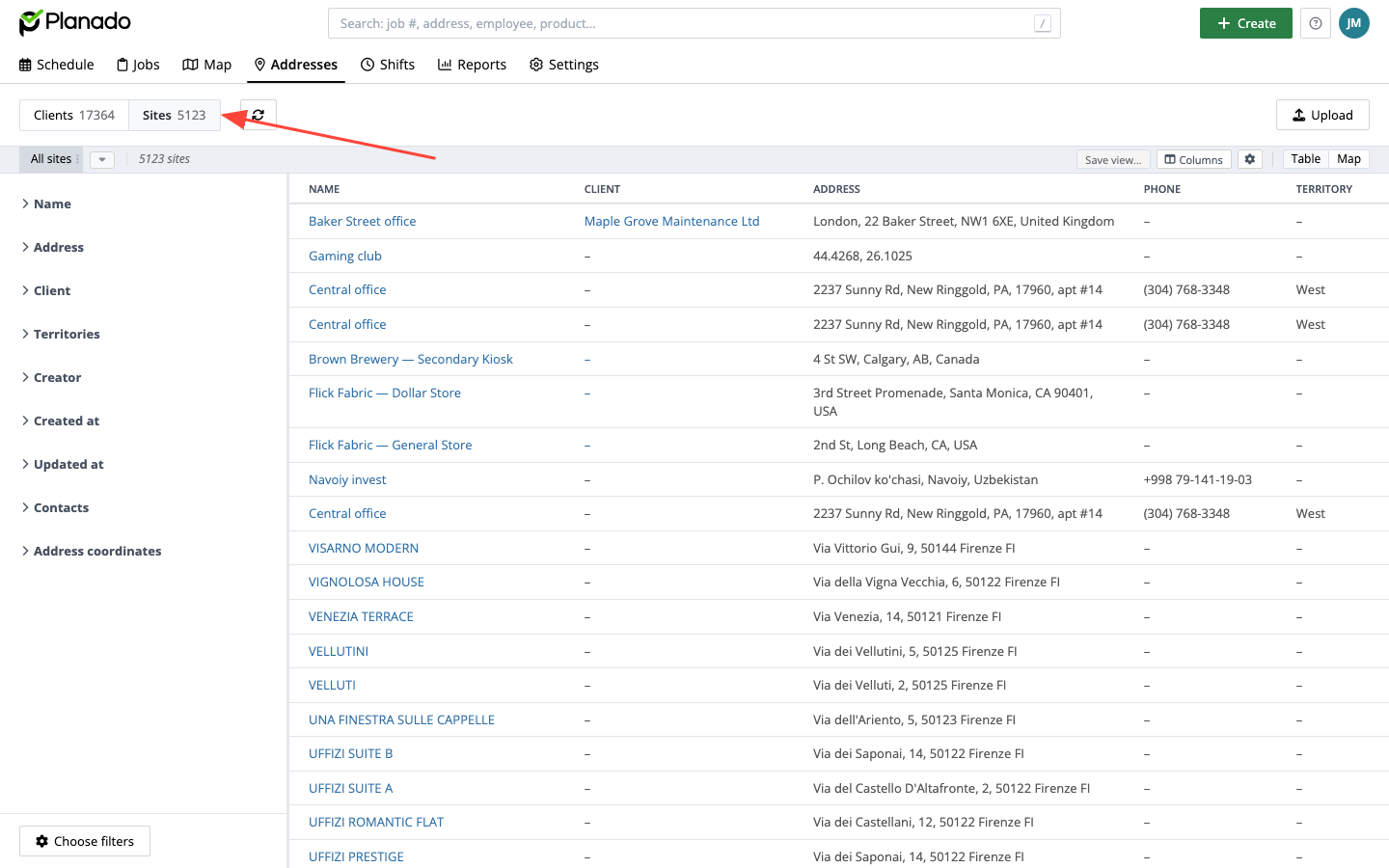
To find a site, expand Name, enter part of its name in Contains…, and press Enter. Use the Client filter to show sites belonging to a particular client.
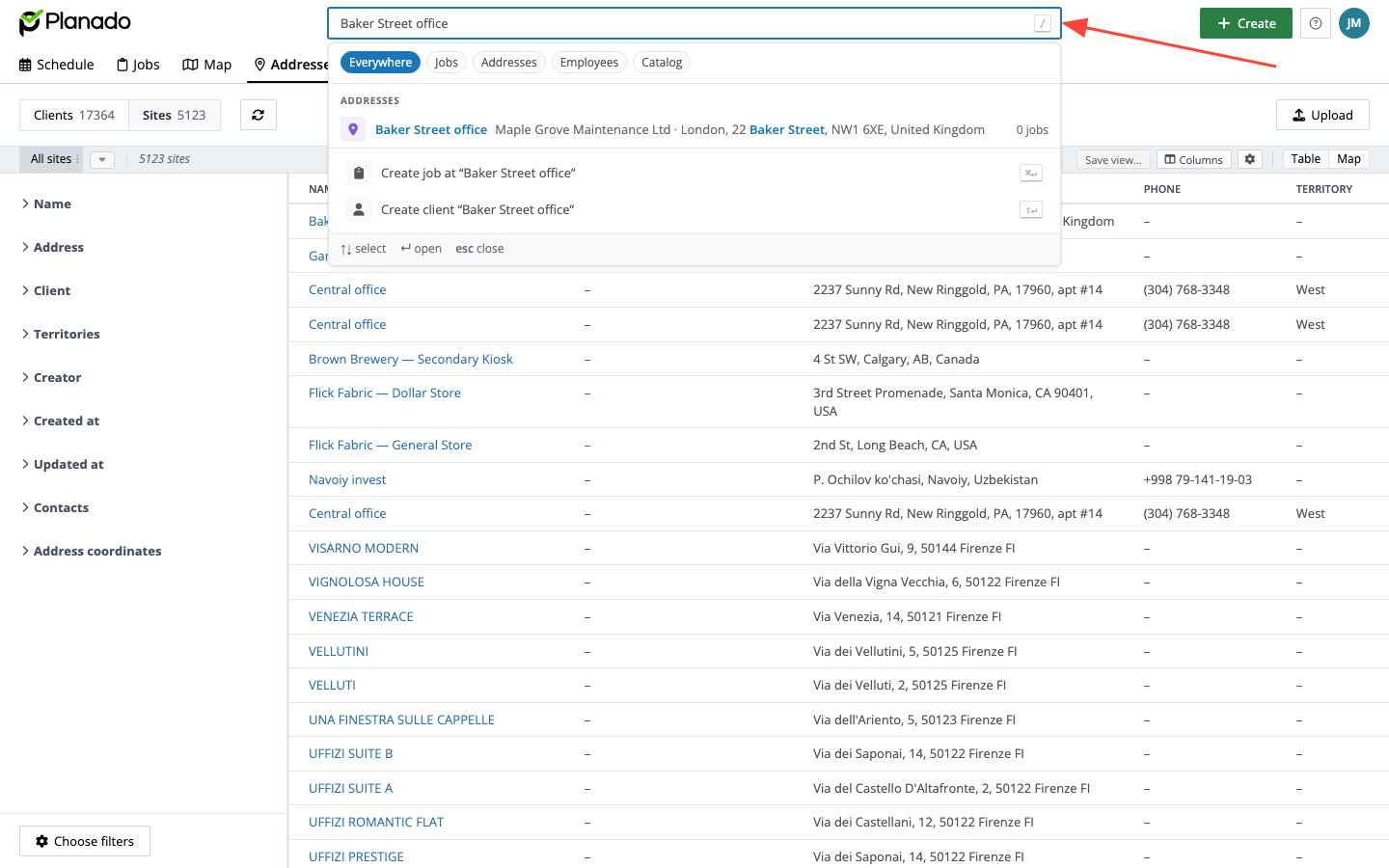
You can also find sites by name, address, phone number, or another detail using the global search at the top of the page. Select a site in the results to open it.
Creating a site and linking it to an organization
- Open Create at the top of the app and select Site.
- In New site, fill in the required Name. Add a description if needed.
- To link the site to a client, find and select the organization in Organization. Leave this field empty for a standalone site.
- Check the address. If the selected organization has an address, it is copied to the form. Replace it with the site’s address if needed.
- Add an office, floor, entrance, territory, address description, and contacts as needed.
- Click Add.
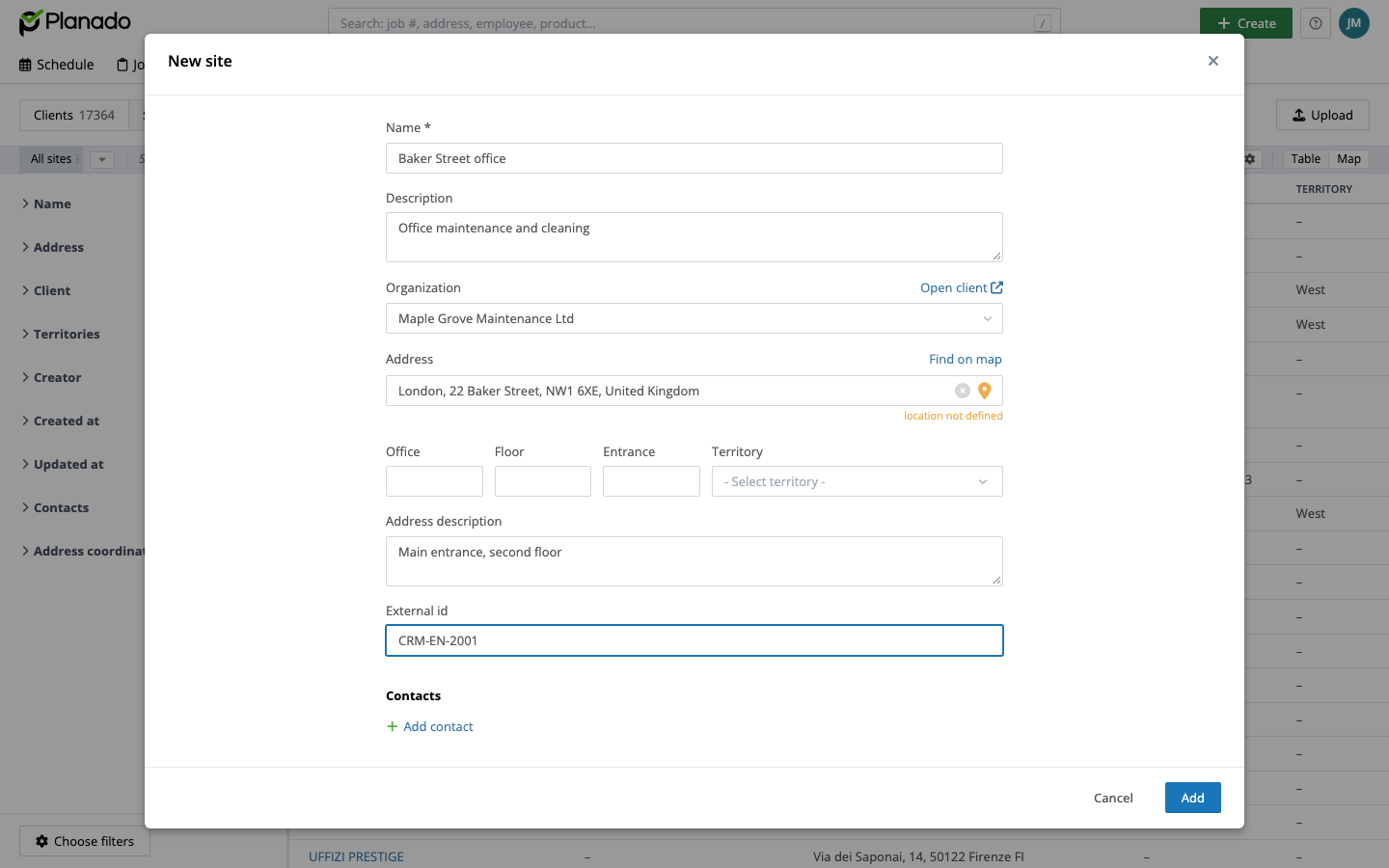
If you plan to update the site through a file or API, set a permanent ID before saving using ⋮ → Add external ID.
Site details
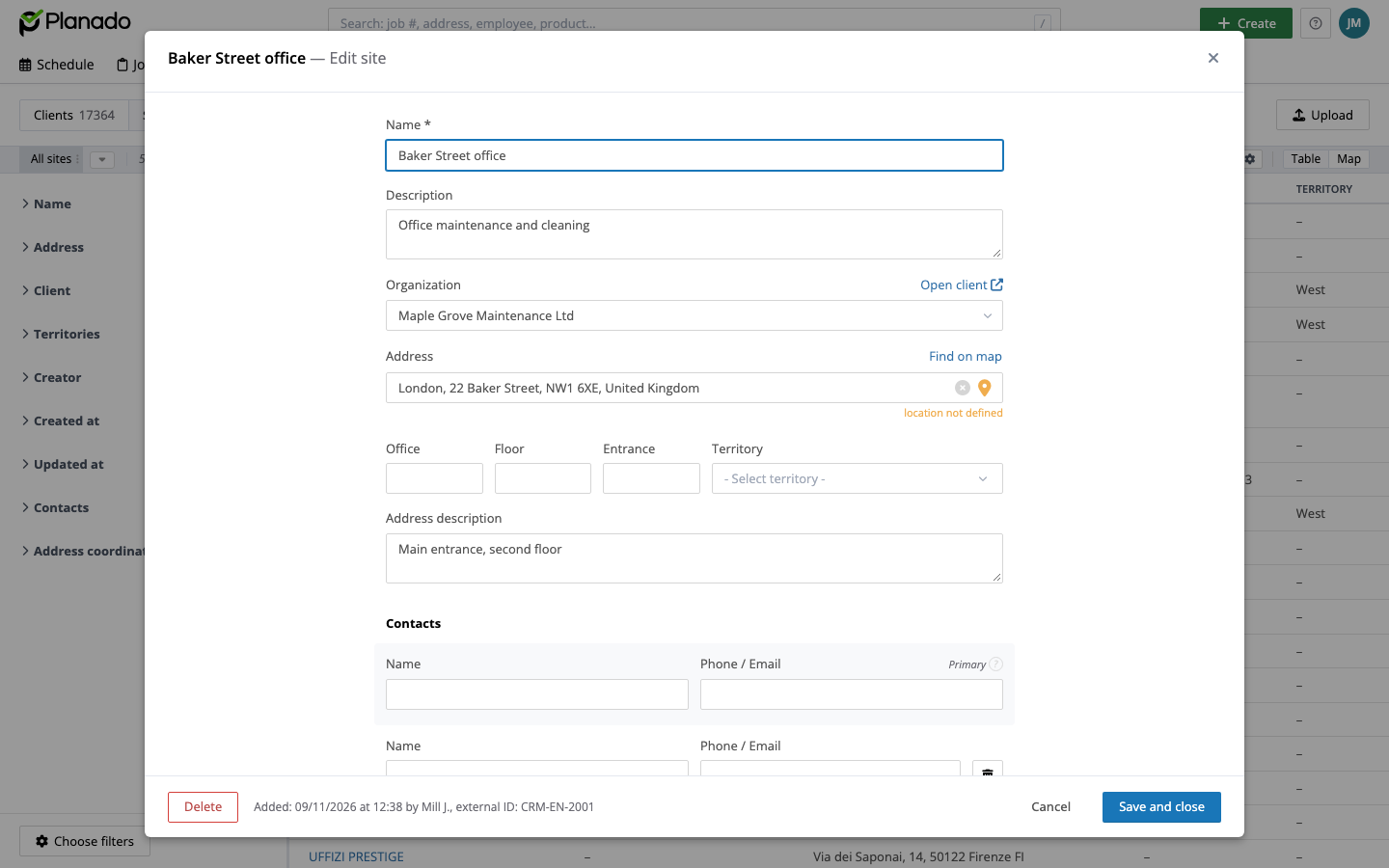
Click a site’s name in the table. You can edit its details and organization. Save changes with Save and close, or use Cancel to close without saving.
An organization’s linked sites appear on the Sites tab in its client dialog. Click a site’s name there to open it.
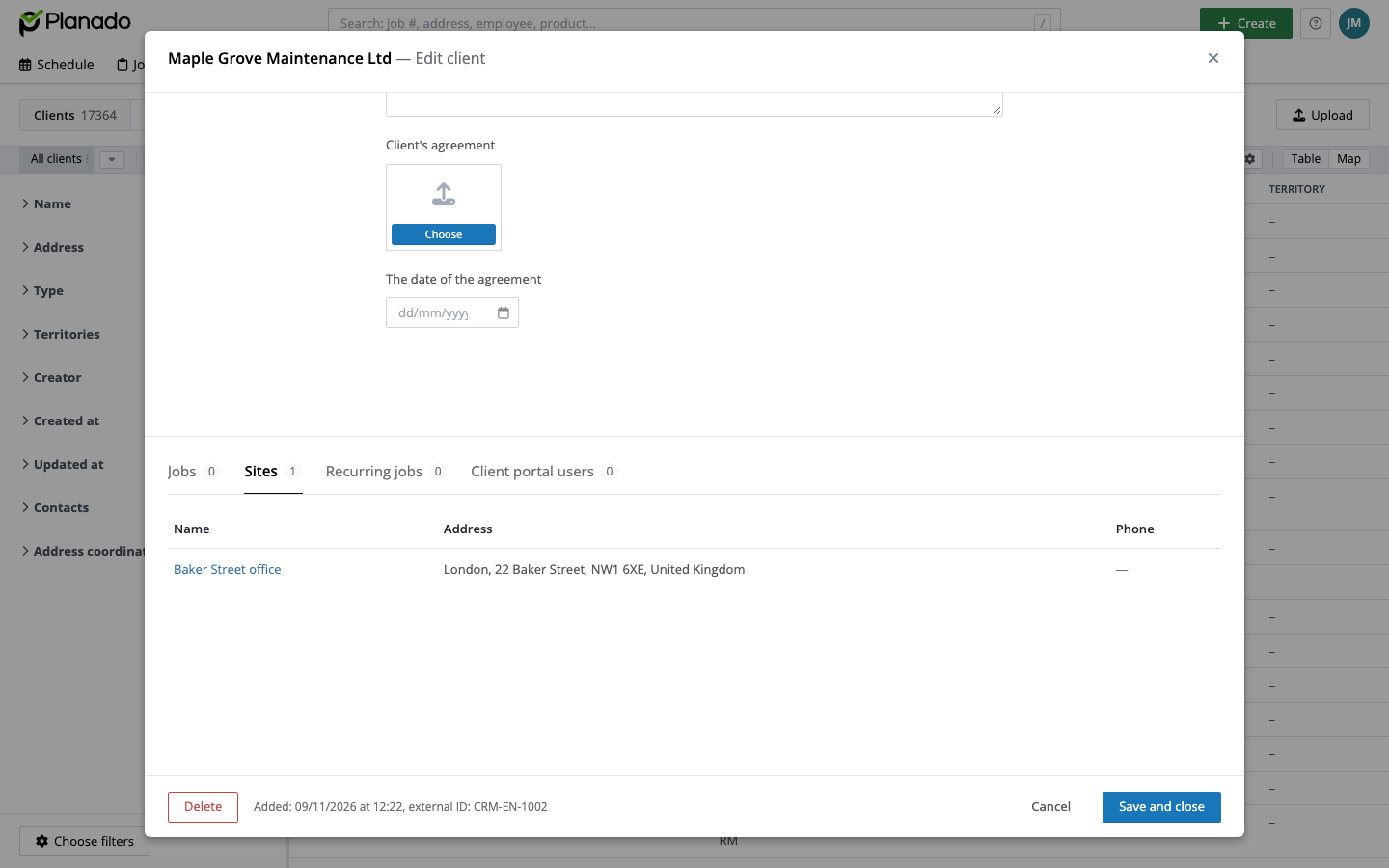
Creating a job for a site
The bottom of the site dialog contains Jobs and Recurring jobs tabs. Click Add job and select a template. The new job opens with the site already selected.
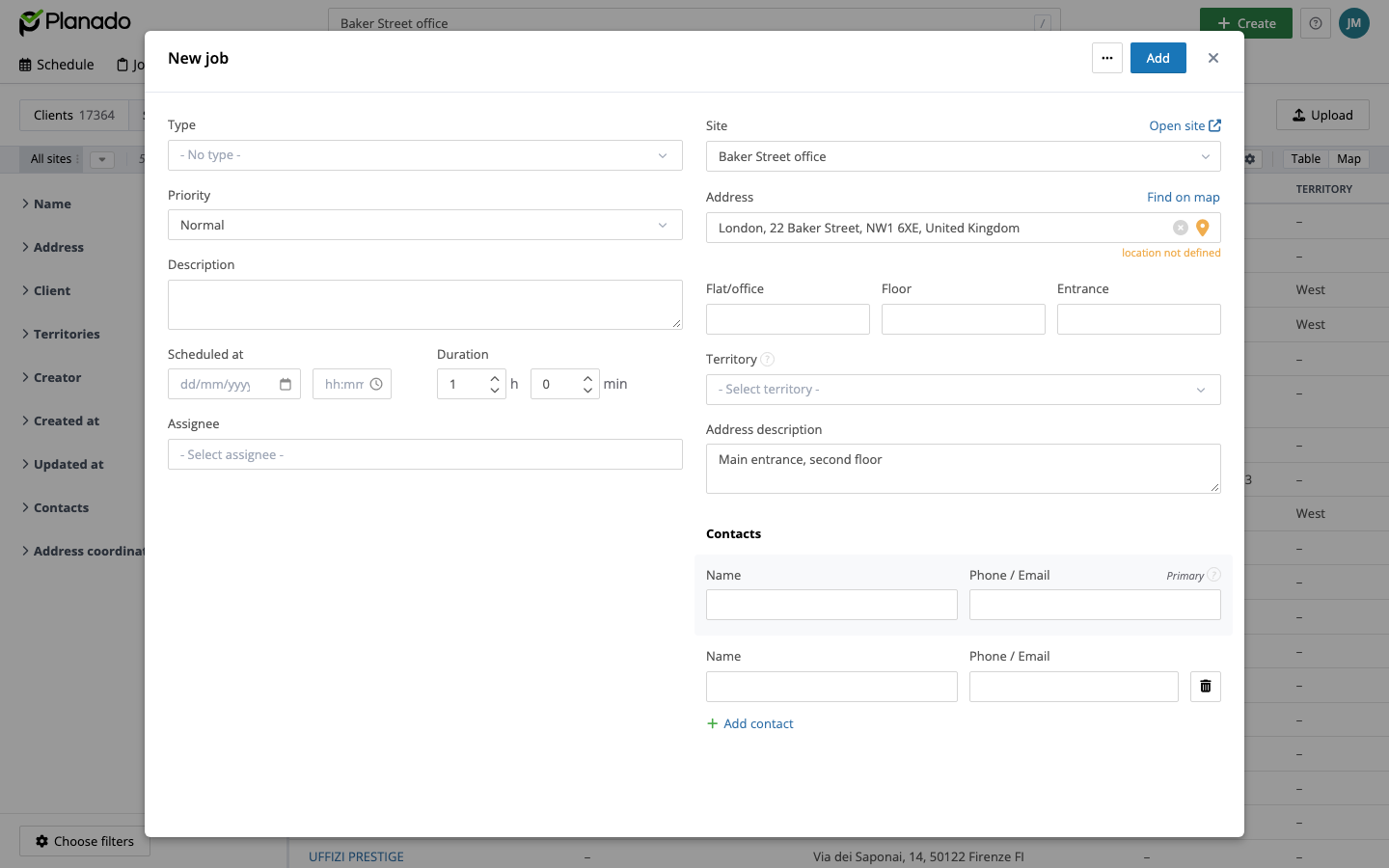
You can also select the site in the client/site field when creating a job normally. The job is linked to the site, and its jobs can be viewed in the site dialog.
Deleting a site
Use Delete at the bottom of the site dialog. Jobs are kept but lose their link to the deleted site. Deleting a client does not delete its sites; only their link to the client is removed.
If your sites are already in a spreadsheet, upload sites from a file.
If you need help, submit a ticket or email support@planado.app.